
CFS for Microsoft OfficeWord · Excel · PowerPoint
Your CFS documents.
Inside the apps you use.
Bring Cirrus File Server into Word, Excel, and PowerPoint. Find the right document, open it in your Office app, and save your work back to CFS as a new file or a new version.
Preview the current workflows below. Contact us to confirm availability and supported versions.
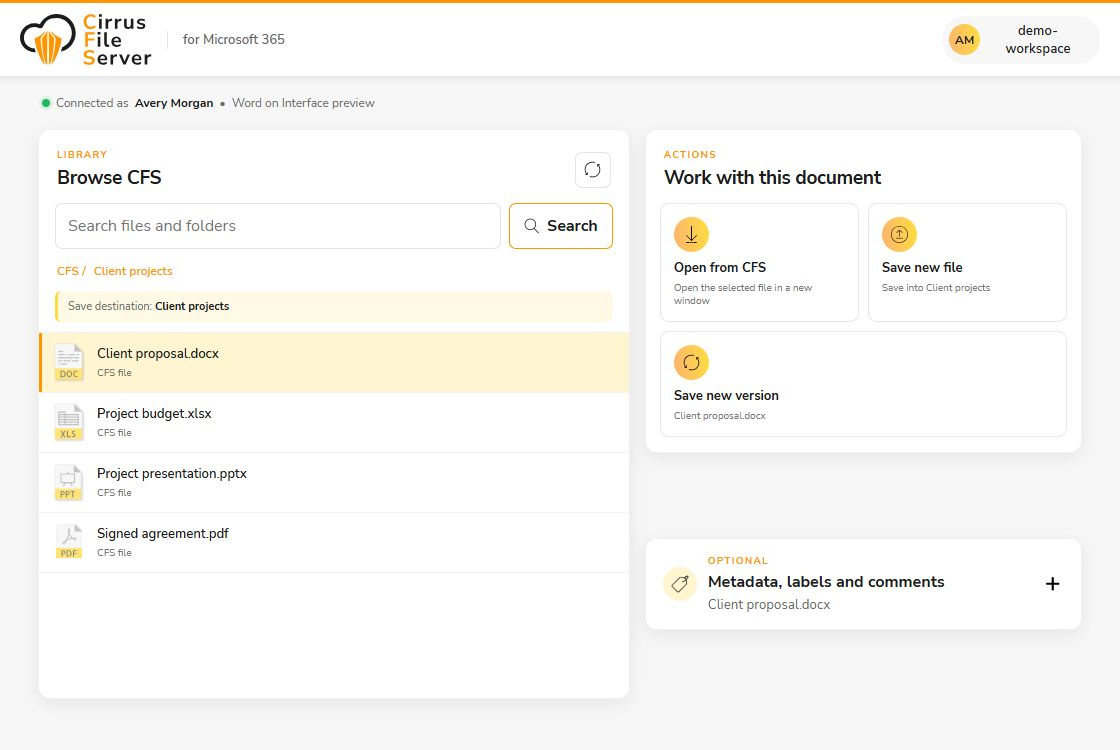
From finding a file to saving the next version.
- 1
Find it in CFS
Browse your CFS folders or use quick search to locate a file. Select the destination folder before saving new work.
- 2
Work in your Office app
Open a compatible CFS document in Word, Excel, or PowerPoint. The add-in opens the selected document in a new application window.
- 3
Save it back with context
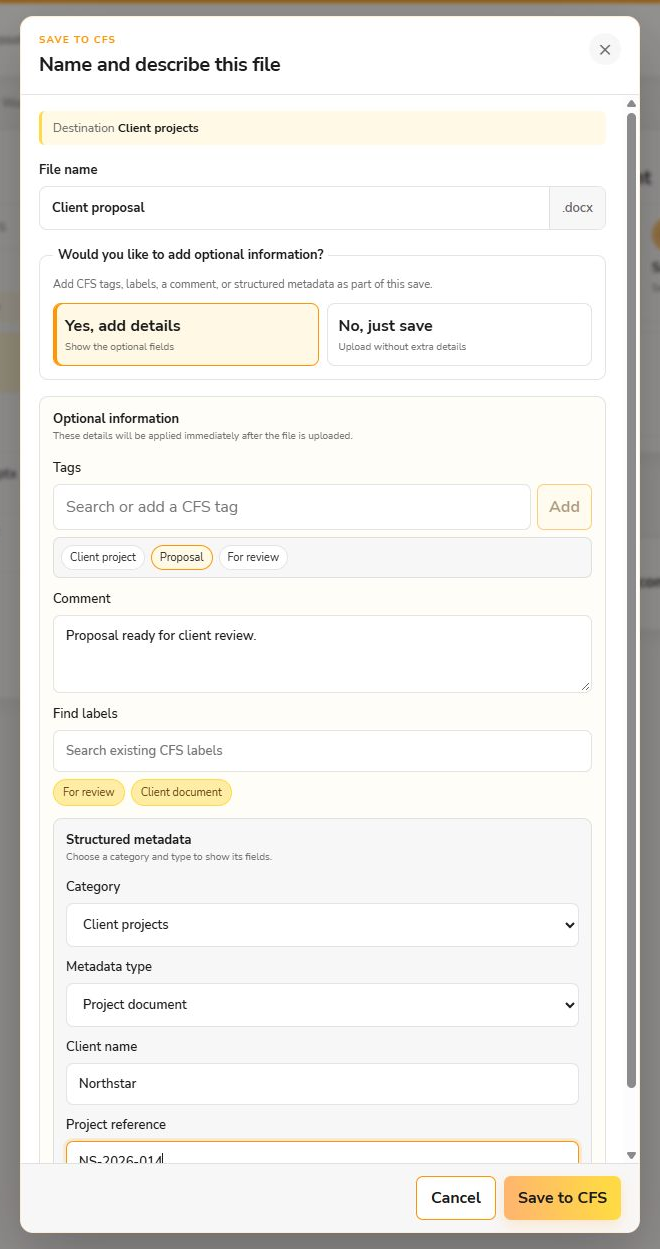
Create a new CFS file or save a new version of an existing one. When saving a new file, choose its name and add optional filing information.
File the document while the work is fresh.
A proposal is easier to find when it carries the right project information. Add CFS tags, labels, a comment, and structured metadata during a new-file save—or save without extra details when that is all you need.
A few practical details.
Which Office apps does it support?
The Office add-in is built for Word, Excel, and PowerPoint. Available actions depend on the Office version and APIs supported by your environment. Ask us to confirm compatibility before rollout.
Can I update an existing CFS document?
Yes. Select an existing CFS file, or work with a document associated with CFS, and use Save new version. Save new file is available when you want a separate document.
Will my existing CFS access still apply?
Sign in with your CFS account. CFS permissions continue to govern the folders and files you can access and the operations you can perform.
How do we get started?
Contact the CFS team to discuss availability, confirm your Microsoft 365 environment, and arrange administrator configuration and deployment.
Bring CFS into your Microsoft workflow.
Tell us how your team works today. We’ll help confirm the right add-in, supported versions, and next steps.
Microsoft, Microsoft 365, Outlook, Word, Excel, and PowerPoint are trademarks of the Microsoft group of companies.