
CFS for Microsoft OutlookOutlook · Read and compose workflows
Keep email and documents
in the same workflow.
Save incoming attachments and entire messages into Cirrus File Server. When you compose a message, browse CFS to attach a document or insert a sharing link—without a separate download-and-find routine.
Preview the current workflows below. Contact us to confirm availability and supported versions.
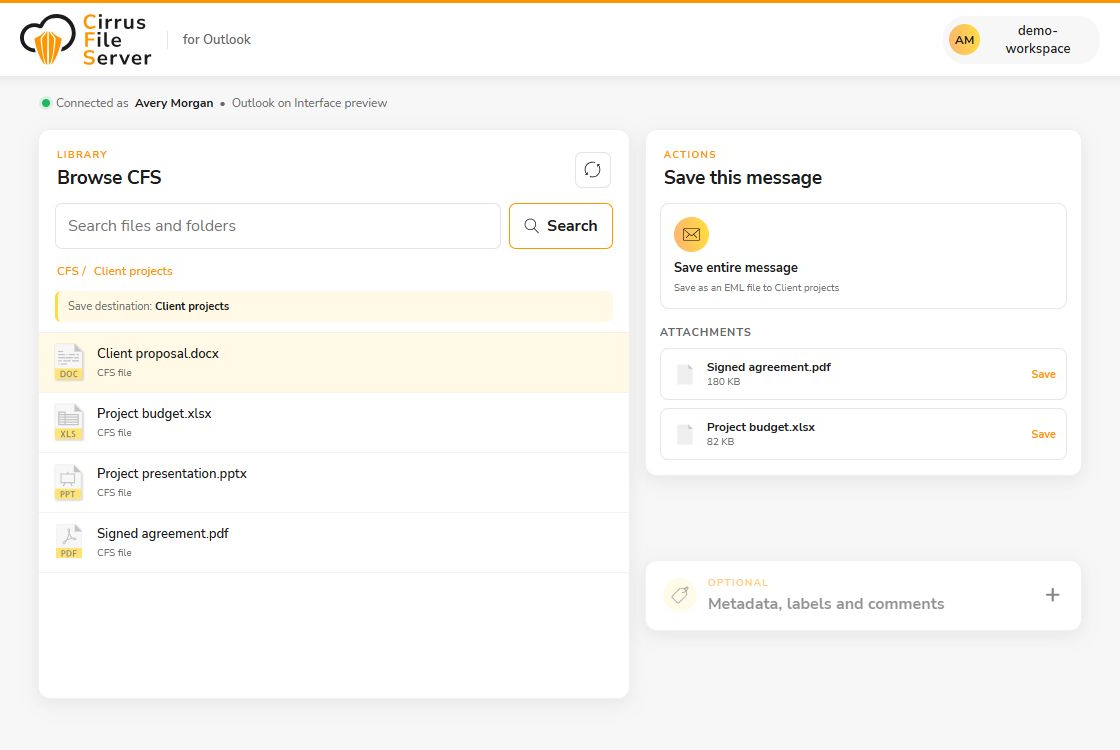
Capture what arrives. Share what comes next.
- 1
Choose the right CFS folder
Browse or search your CFS workspace from the add-in and choose where the message or attachment belongs.
- 2
Save the email or its attachments
Save individual file attachments, or preserve the entire message as an EML file in a compatible Outlook version. Name the file and optionally add filing details.
- 3
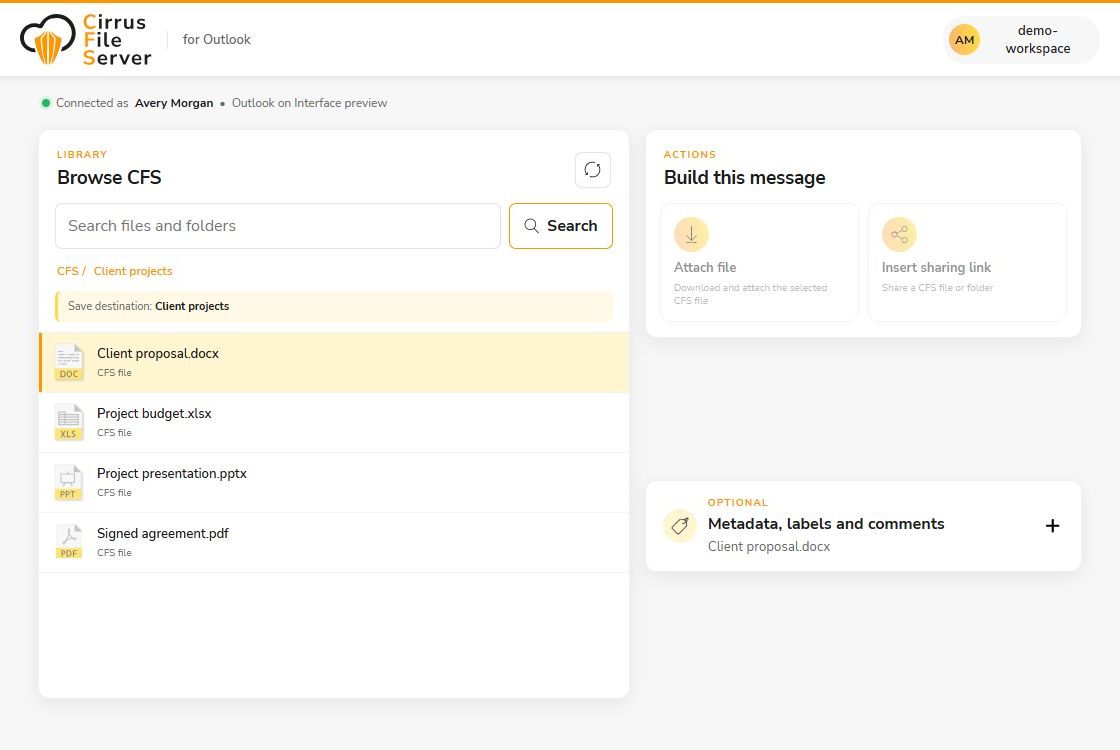
Use CFS content in your reply
In compose mode, select a CFS file to attach, or insert a CFS sharing link for a selected file or folder.
Send the file—or send a CFS link.
The compose view gives you two clear choices. Attach a copy of a selected CFS file to the draft, or insert a sharing URL for a file or folder. Use the link workflow when a document is too large for the add-in’s attachment limit.
A few practical details.
Can I save an entire email?
Yes, as an EML file when Outlook supports the Mailbox 1.14 API in read mode. Individual attachment workflows are also included. We will confirm the available actions for your Outlook version.
Is there an attachment size limit?
The add-in limits files attached to Outlook drafts to 25 MB. For larger files, use Insert sharing link. Other limits imposed by your mail service may also apply.
Can I add tags and project information?
Yes. The new-file save dialog offers optional CFS tags, labels, comments, and structured metadata for saved messages and attachments.
How do we deploy it?
The Outlook add-in has its own manifest and administrator setup. Contact the CFS team to confirm availability and compatibility for your organization.
Bring CFS into your Microsoft workflow.
Tell us how your team works today. We’ll help confirm the right add-in, supported versions, and next steps.
Microsoft, Microsoft 365, Outlook, Word, Excel, and PowerPoint are trademarks of the Microsoft group of companies.